
Download Tuffpuff Casino App and Start Playing on Mobile
Let’s set up your mobile casino access without turning your phone into a file-hunting adventure. When you Download Tuffpuff, you’re really setting up fast official mobile access through our browser-based platform and home-screen shortcut.
The Tuffpuff App experience gives you quick entry to games, bonuses, payments, account tools, and support from your phone. No risky third-party APKs, no mystery download buttons, no “trust me bro” links.
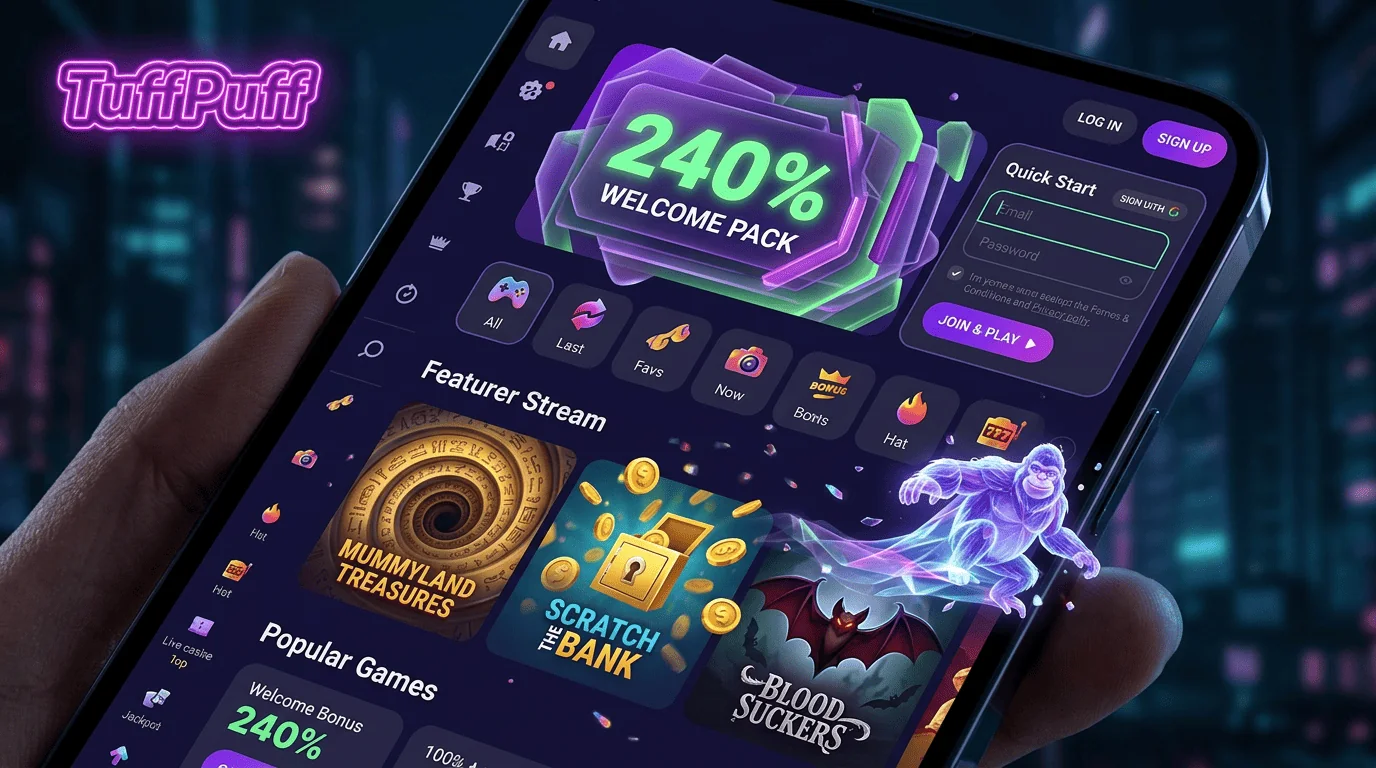
Before You Download Tuffpuff
Before you Download Tuffpuff, take one minute to check your device, browser, connection, and account details. It makes the whole setup smoother and helps you avoid login or loading issues later.
Here’s the thing, mobile play should feel easy, but account safety still comes first. Official access is always the safest route.
Device Requirements
The Tuffpuff Casino App setup works best on modern smartphones and tablets. You can use iOS or Android devices with an updated browser and a stable internet connection.
The Tuffpuff Mobile App route is browser-based, so you do not need to install a large native application. Your phone only needs to open the official mobile platform cleanly.
| Device item | What you need | Why it matters |
| Smartphone | iOS or Android | Main mobile access |
| Tablet | Updated browser | Bigger screen view |
| Storage | Minimal space | Shortcut only |
| Screen lock | Enabled | Account safety |
| Browser | Current version | Smoother loading |
A quick device check saves time. If your browser is outdated, update it before blaming the casino gremlins.
Browser and Internet Connection Checklist
The Tuffpuff App experience depends on your browser and connection. Use Safari, Chrome, or another updated browser that supports secure pages and home-screen shortcuts.
A stable connection matters most when you log in, open live games, deposit, or request withdrawals. Public Wi-Fi may be fine for scrolling memes, but it is not ideal for account access.
Good mobile setup checks include:
- Use the official site only.
- Keep your browser updated.
- Enable your phone screen lock.
- Avoid public Wi-Fi for payments.
- Close unused apps if loading slows.
- Check your connection before live games.
If a page loads slowly, refresh once and check your browser first. Simple fixes often work faster than a full support mission.
Account Access Preparation
Before you Download Tuffpuff access, make sure your login details are ready. You’ll need your registered email or username, password, and access to any confirmation message if requested.
The Tuffpuff Casino Mobile App setup works better when your profile details are accurate. Your name, date of birth, email, phone number, and address may later support payment checks or verification.
Useful account prep includes:
- Use your real personal details.
- Keep your email active.
- Use a unique password.
- Store credentials securely.
- Check bonus eligibility before depositing.
- Keep documents clear if verification is requested.
A clean account setup helps with games, rewards, support, and payments. It also makes future withdrawals less stressful.
Mobile Setup Process
The setup process is simple. You open the official mobile platform, log in or register, and save access to your home screen if you want faster return visits.
This gives you an app-like flow without forcing an unsafe file download. Big plus, you keep control over where you log in.
Opening the Official Mobile Platform
The Tuffpuff App route starts in your phone browser. Open the official site directly, check that the page loads securely, then sign in or create your account.
From there, you can use the same tools you’d expect on desktop. Games, bonuses, cashier access, account settings, and help routes stay connected through one profile.
| Setup step | What you do | Player tip |
| Open browser | Visit official platform | Avoid copied links |
| Check page | Confirm secure loading | Look before login |
| Sign in | Use account details | Type carefully |
| Open lobby | Browse games | Test loading first |
| Save shortcut | Add to home screen | Use official page only |
Once the platform opens smoothly, you’re ready to make it easier to reach. The shortcut step is optional, but useful.
Adding Tuffpuff to Your Home Screen
When you Download Tuffpuff in the practical mobile sense, you can add the official site to your home screen. This creates a quick icon that opens your mobile casino access faster.
On most devices, open the browser menu or share button and choose “Add to Home Screen". Then confirm the shortcut name and save it.
Before saving the shortcut, check:
- The official site is open.
- The address looks correct.
- Your browser is updated.
- You are not using a copied link.
- Your device is locked.
- You can reopen the page smoothly.
This gives the Tuffpuff Casino App feel without installing unknown software. It’s cleaner, safer, and easier to manage.
Creating an App-Like Experience
The Tuffpuff Mobile App setup is all about convenience. You tap the shortcut, open the mobile platform, and continue your session through the official browser route.
The Tuffpuff App experience can include lobby browsing, bonus checks, cashier access, profile tools, and support. It keeps everything close without taking over your device.
Good app-like habits include:
- Keep the shortcut on your main screen.
- Update your browser regularly.
- Use password manager carefully.
- Log out on shared devices.
- Avoid unknown “faster app” downloads.
- Contact support if access looks unusual.
This setup gives you speed without losing safety. That’s the sweet spot for mobile casino play.
First Login After Mobile Setup
Your first mobile login is the moment to check that everything works. Open the shortcut or browser, enter your details, and review your account area before playing.
Do not rush into games if something looks wrong. A quick dashboard check can prevent bonus, payment, or access confusion.
Entering Your Player Account
After setting up the Tuffpuff Casino App shortcut, open it and use your registered details. Enter your email or username and password carefully.
If a confirmation step appears, complete it from your own secure device. Extra checks may happen when your login looks new or unusual.
| Login item | What to check | Why it helps |
| Correct spelling | Prevents failed access | |
| Password | Current version | Avoids lockouts |
| Device | Personal phone | Protects account |
| Connection | Stable network | Reduces errors |
| Messages | Any alerts | Shows next steps |
If login fails, use the official recovery route. Do not create another account just because a password reset feels boring.
Saving Secure Access Preferences
Saved access can be convenient, but only on your own device. Use a trusted password manager if you want faster login, and keep your phone lock enabled.
Avoid saving casino access on shared phones, work devices, or public computers. Your account may include balance, payments, bonuses, and personal details.
Safe preference habits include:
- Use biometric unlock only on your own device.
- Keep your email protected.
- Do not share login details.
- Review saved passwords.
- Log out after risky access.
- Update credentials if exposed.
Convenience is great until it becomes careless. Keep the setup fast, but not loose.
Checking Your Mobile Dashboard
The Tuffpuff Casino Mobile App experience should give you easy access to your dashboard. Check your balance, active rewards, profile settings, cashier area, and account messages before your first mobile session.
This is also where you can confirm whether bonuses or payment options are available. If something is missing, check terms or contact support before depositing.
Useful dashboard checks include:
- Real-money balance.
- Bonus balance.
- Active offers.
- Payment methods.
- Account messages.
- Responsible gaming tools.
Your dashboard is the control room. Use it before the first spin, not only after something feels confusing.
What You Can Do After Setup
Once mobile access is ready, you can use your account for games, bonuses, payments, and support. The exact features available may depend on your account, location, device, and live platform settings.
The best approach is simple: check the lobby, read offer terms, confirm cashier options, and play within limits. Smooth mobile access should support smarter play, not faster mistakes.
Play Casino Games
The Tuffpuff App setup gives you quick access to slots, live casino tables, and other available entertainment categories. Sports betting access may also depend on what is available in your account and region.
Slots are usually the easiest mobile starting point. Live games need a stronger connection because streams, table limits, and round speed matter more.
| Game area | Mobile feel | Smart check |
| Slots | Fast and simple | Bet range |
| Live casino | Real-time action | Stream quality |
| Jackpots | Prize-focused | Restrictions |
| Table games | Rule-based play | Limits |
| Sports betting | Event-based, if available | Market rules |
Test controls before increasing your stake. A game that feels great on desktop may feel different on a small screen.
Claim Bonuses
Mobile access can help you check welcome rewards, reloads, free spins, missions, or account-based offers when available. Always read the active terms before claiming.
Bonus rules can include wagering, expiry timing, eligible games, maximum bet limits, and withdrawal caps. Those details decide the real value of any reward.
Before claiming, check:
- Reward type.
- Activation route.
- Minimum deposit if required.
- Eligible games.
- Wagering rules.
- Expiry window.
Bonuses are useful when they fit your session. If the terms feel unclear, ask support before playing.
Manage Payments
You can also use mobile access to check payment options, deposit, request withdrawals, and review transaction status. Available methods can depend on your account, region, and cashier settings.
Use payment details in your own name. That helps with ownership checks and can make verification smoother if documents are requested.
Good payment habits include:
- Use official access only.
- Avoid public Wi-Fi.
- Check limits before depositing.
- Review bonus status before withdrawing.
- Keep transaction references.
- Respond to verification requests quickly.
A withdrawal may take longer if documents are missing or account details do not match. Clean information helps keep the process clearer.
Mobile Setup for iOS
The Tuffpuff Casino iOS setup works through Safari or another supported browser. Open the official site, sign in, and use the share menu if you want to add access to your home screen.
This gives iPhone and iPad players a quick shortcut without needing an App Store download. The mobile platform stays tied to the official browser route.
Typical iOS setup:
- Open Safari.
- Visit the official site.
- Log in or register.
- Tap the share button.
- Choose “Add to Home Screen".
- Confirm the shortcut.
The Tuffpuff Casino iOS route works best when Safari is updated and your device lock is active. Keep payment actions on secure networks only.
Mobile Setup for Android
The Tuffpuff Casino Android setup works through Chrome or another updated browser. Open the official platform directly, sign in, and add a home-screen shortcut if your browser offers it.
Do not use third-party APK pages or unknown download links. The official browser route gives you the Tuffpuff Casino App style experience without unnecessary file risks.
Typical Android setup:
- Open Chrome.
- Visit the official platform.
- Log in or create an account.
- Open the browser menu.
- Choose “Add to Home screen".
- Save the shortcut.
The Tuffpuff Casino Android route is simple and flexible. Keep Chrome updated, avoid public Wi-Fi for payments, and check the official address before login.
Troubleshooting Installation Issues
If setup fails, start with the basics before assuming something serious is wrong. Most mobile access issues come from browser cache, weak connection, old software, or copied links.
When you Download Tuffpuff access through a shortcut, remember that it still depends on your browser. Updating the browser or recreating the shortcut can solve many problems.
Common fixes include:
- Refresh the page.
- Clear browser cache.
- Update your browser.
- Restart your device.
- Recreate the shortcut.
- Check your internet connection.
- Use the official site directly.
If the issue continues, contact support with your device model, browser, screenshot, and a short description. Clear details help faster than “it’s broken", even though we fully understand the mood.